Bicep Heart Picture Generator
Turn your portrait into a bicep heart picture.
What is a bicep heart picture?
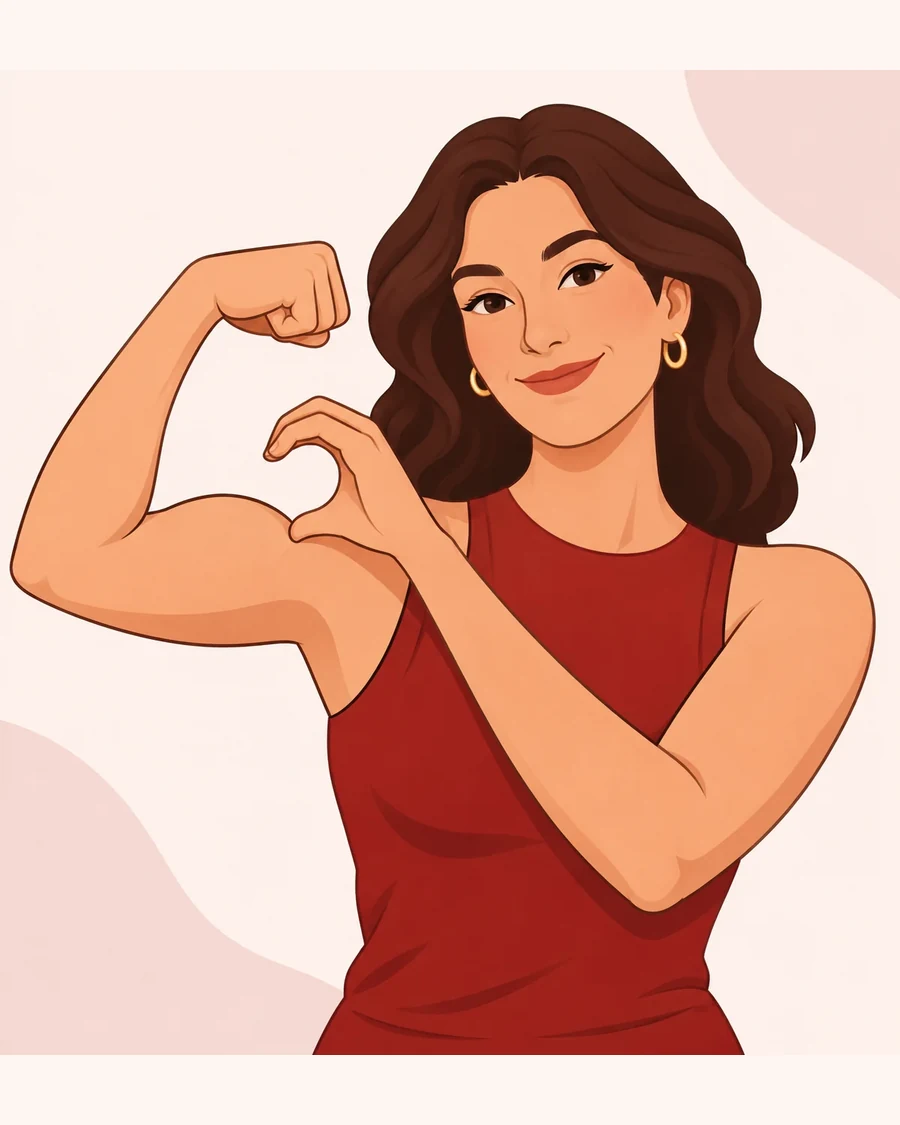
A bicep heart picture shows one arm flexed while the opposite hand closes a small heart beside the shoulder. It is not the two-arm heart above the head. Get Bicep Heart edits your own portrait into this fixed pose as a standalone PNG picture, rather than making a video and selecting a frame.
Picture settings
- Input
- One photo of one adult, with the face, shoulders and both arms visible.
- Image files
- JPG, PNG or WebP, up to 5 MB.
- Editing
- A fixed shoulder-side pose. No written prompt or editing app is needed.
- Account
- Sign in to choose a photo and keep the task in your account.
- Output setting
- 1024 × 1536 pixels · 2:3 portrait · PNG
- New picture task
- 1 Credit per picture. No video is generated or charged.
Choose a photo for the pose
Start with a normal upper-body portrait; you do not have to make the finished heart in the input. The editor needs a clear face and room around the arms to work with the pose.
- Use one adult facing the camera in even light, with the eyes and face unobstructed.
- Keep shoulders, elbows and hands in the frame. A wider original photo is better than stretching a face-only crop.
- Avoid group photos, heavy filters, sunglasses and objects hiding the arms or torso.
- Each side must be 200–4096 pixels, with an input ratio between 1:3 and 3:1.
Make a picture from your photo
Prepare one portrait
Choose a clear upper-body photo of one adult. Check the face and both arms before uploading.
Sign in and create
Sign in and select your photo. Review 1 Credit per picture, then choose Create picture. Buying credits never starts generation.
Review and download
Check the face, fingers and shoulder-side heart in the finished result, then use Download PNG. Downloading does not start another image edit.
Picture, video or a final frame?
Choose a direct picture when you only want a still. Choose a video for movement. A final frame is a third route: it uses a video that is already complete, not this image editor.
| Choose | How it is made | Generation credits |
|---|---|---|
| Direct picture | One portrait is edited into a new PNG. No video is created. | 1 Credit for a new picture task. |
| Animated video | One portrait becomes the fixed moving bicep-heart scene, delivered as an MP4. | 10 Credits for a new video task. |
| Video final frame | A PNG is extracted from a completed video you already have. | No extra generation credits for extraction. The video task has its own cost. |
Check the heart before sharing
Review the actual edit, not just the file format. A picture is ready to share when the face is recognisable, the hands make sense and the small heart reads clearly beside the shoulder.
- Inspect the face, hair and visible clothes for changes you did not intend.
- Look closely at the fingers and where the hand meets the flexed arm.
- Check that the heart is beside the shoulder, with neither hand cut off by the frame.
- Keep your own downloaded copy. A newly generated alternative is a separate paid task, not another download.
Bicep heart picture questions
How do I make my own bicep heart pic?
Sign in, upload a clear photo of one adult, review the credit cost and explicitly create your picture. The editor uses a fixed small-heart pose beside the shoulder. You do not need to write a prompt or record yourself doing the gesture.
Is this a frame taken from a video?
No. This tool edits your photo directly with GPT Image 2.5 Flare. It produces a standalone PNG picture without creating or charging for a video.
Do I need to pose first?
No. Start with a normal, front-facing upper-body photo. Keep the face and both arms visible, with room around the shoulders. Avoid cropped arms, group photos and covered faces.
What file do I download?
One PNG picture. The configured output is 1024 × 1536 pixels in a 2:3 portrait shape. This page does not produce an MP4 or an animated clip.
Is the picture free, and do I need to buy a video?
A new picture task uses 1 Credit. You do not need to generate or pay for a video. Credits come from one-time packs shared with the video tool; local photo previews and downloads do not spend generation credits. There is no free AI preview.
Can I use a pet, group or couple photo?
No. This picture scene is for one adult in one photo. It is not a pet or multi-person editor, and there are no controls for custom poses, outfits or backgrounds.
What should I check before sharing?
Review the face, fingers and small heart beside the shoulder. AI edits can change details, and the pose should not become a large heart above the head.
What happens if generation fails?
A confirmed failure returns the task credits. If the result is uncertain, keep checking the same task instead of submitting another paid request. A completed edit you would like to change is not automatically a failed task or a free retry. Credit returns and cash-refund reviews are separate.
Where can I find my picture, and is it public?
Sign in to the same account and open My creations to find completed pictures. Submitted photos and results use private, account-checked delivery and are not published as site examples by default. Keep using the same browser to recover a local photo draft after checkout; clearing browser data can remove that draft.